How to import an .apkg file into Anki
549 words (~4 mins read)
I'm a big fan of Anki flashcards as a learning and memorization tool, it's really powerful. In this blog post I will show you how to import an existing deck of flashcards into your Anki app so you can get started as fast as possible.
.apkg files
An Anki package file (.apkg file) contains a deck of digital flashcards, including their text, images, and audio. The official Anki Shared Decks website has lots of decks (.apkg files) shared by the community, free to download. But you could receive an .apkg file privately from a friend. Or you could purchase .apkg files from sellers who have carefully crafted and curated decks of flashcards, and keep them updated. If you buy my flashcards for AWS certifications, for example, you will download the corresponding .apkg file directly after the purchase.
Importing into the Anki app
Anki has multi-platform and multi-OS support. First install the Anki app in your device. Once installed, you can import .apkg files into Anki. In this example I will showcase how import works in MacOS, but the process is very similar in other platforms.
You can import an .apkg file into Anki in several ways:
- Right-click on the .apkg file, select "Open with...", and then select "Anki.app".
- Drag and drop the .apkg file into an open Anki window.
- From an open Anki window, go to the top menu, select "File", then "Import...". Locate the .apkg file in your system and select it.
No matter which of the three methods you follow, you will see the following screen, asking you to confirm import options:
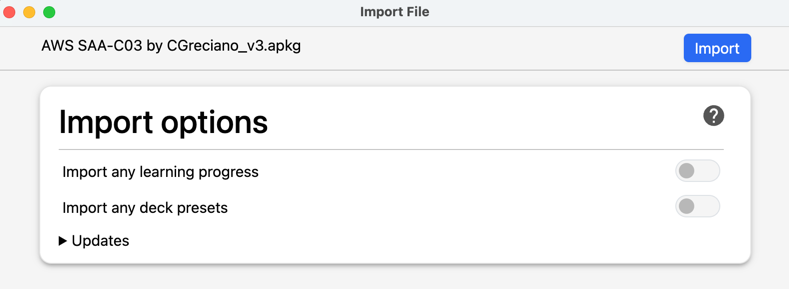
Unless you want to tweak something, just click "Import". You will be notified of the imported cards:
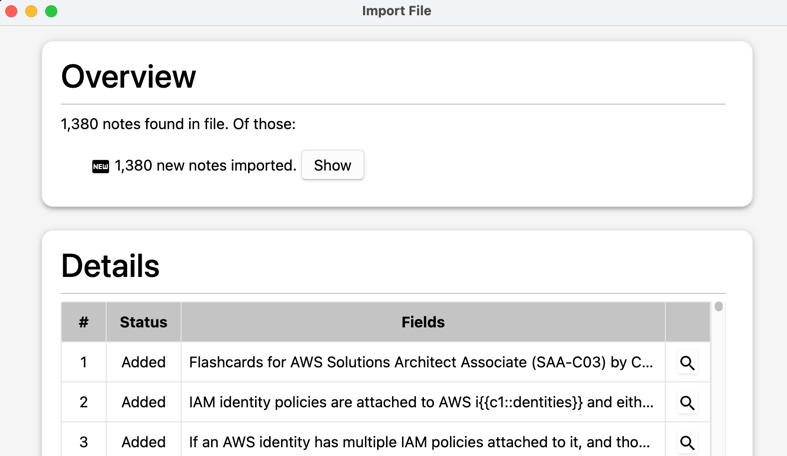
Clicking on "Show" will direct you to Anki's browser, where you can see the imported cards in detail. If you go back to the home view, the deck will now appear in your list of decks:
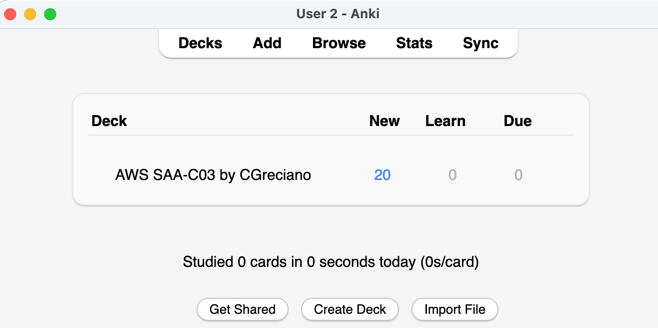
Congrats! You can now start studying the deck by clicking on it!
Importing .apkg files in other platforms
This blog post showcased importing in MacOS. Here are some links indicating the process in other platforms:
- Windows or Android: https://www.wikihow.com/Open-APKG-Files
- iOS: https://forums.ankiweb.net/t/i-want-to-import-a-deck-to-the-app-withusing-a-desktop/40198/3
Syncing your Anki decks between different devices
Personally, I create and edit flashcards on my MacBook, and do my daily reviews on my iPhone. This desktop+mobile setup is quite common among many Anki enthusiasts. So how do you sync your Anki decks between devices? Thankfully, Anki offers a FREE cloud syncing service called AnkiWeb. You simply need to create a free account in AnkiWeb, which you can do by clicking "Sync" in your Anki app's home view:
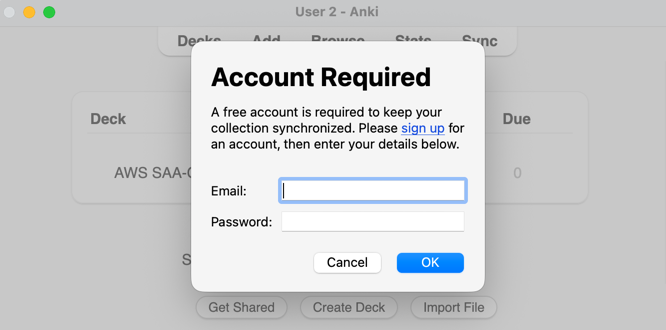
Create your account, confirm your email address, and then connect that account to both your Anki app on desktop and your Anki app on mobile. Voilà! You can now sync your deck from your device to the cloud, or from the cloud to your device.
Conclusion
Importing created flashcards into Anki is not very difficult once you've done it the first time. This opens up a ton of learning resources for you, but be mindful of the quality of the flashcards you find or are shared with you. You should always edit or delete a card if you feel it's not accurate or useful to you. Happy Anki-ing!