Run your Local AI in less than 15 minutes! (no tech skills required)
1871 words (~11 mins read)
It's 2026 and hence you're most likely already using AI tools such as ChatGPT, Claude, or Gemini. You're probably also worried about the rising costs of using these AI tools and there's good reason to be: vendors of these tools are rising prices and/or introducing ads to try to be profitable. If you are entrenched on AI workflows and becoming dependent on a certain vendor, what will you do if the vendor spikes their prices to something you can no longer afford?
The antidote for your worries is using local AI! By running a free and open-source AI model in your machine and hardware, you can say goodbye to monthly subscriptions and ads! You might be scared of trying to install local AI on your computer and think it's a complicated setup, but I assure you, it is surprisingly simple to do so, as I will show you in this blog post. If you're here just for the instructions, jump directly to the Step-by-step installation of your local AI section. Before that section I want to first explain the tradeoffs between using local AI and cloud AI and then briefly present the AI stack of tools we will use to deploy AI models locally.
Tradeoffs between local AI and cloud/SaaS AI
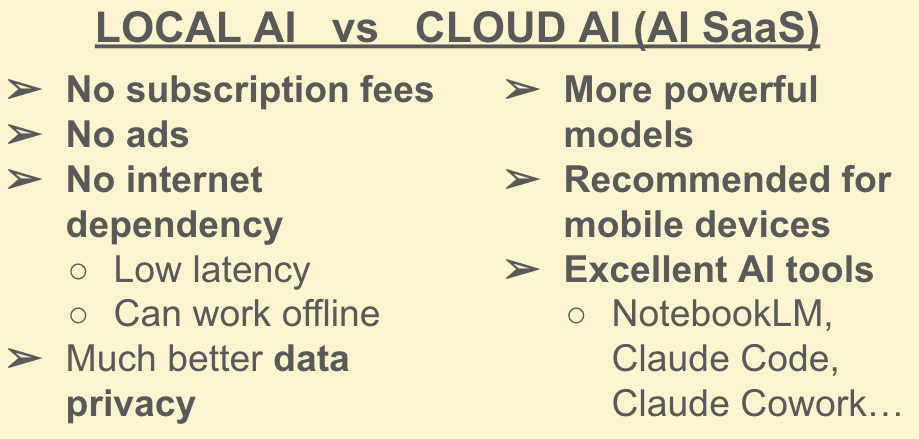
SaaS stands for "Software-as-a-Service": many of the online apps you use, like Gmail, Netflix, Spotify... are examples of SaaS. ChatGPT, Claude, etc are also SaaS, AI SaaS to be specific. Let's be very clear on the pros and cons of running your local AI versus using an AI SaaS, i.e. a vendor's AI hosted in the cloud. If you run your local AI, you are hosting the AI model(s) in your own hardware, which means:
- 👍 No subscription fees and no ads. Compare using Netflix or having video files locally on your computer: if you have the video file of your favorite movie in your machine, you can reproduce it as many times as you want from now until forever, without having to consume ads or paying a subscription to Netflix.
- 👍 No internet dependency → low latency (super fast transmission), can work offline. The AI is in your hardware. Your requests to it and its responses to you travel almost instantly within your machine, whereas accessing an AI SaaS means traversing the internet. This advantage is really noticeable if your internet connection is unstable and/or slow.
- ‼ Note that this advantage does NOT guarantee that your local AI will always be faster than an AI SaaS! If your local AI needs to "warm up", if it's bottlenecked by resources in your machine, or if you're using a slow reasoning model, that extra waiting time might be higher than waiting for responses and requests to traverse the internet.
- 👍 Much more data privacy. This is very important for many users. While you can disable cloud AI from using your data to train their models, your data is still traversing the internet and is still being stored in the vendor's servers. What's worse, cloud AI models can learn enough about you and store sensitive stuff about you in their long-term memory. What guarantee do you have that vendors won't sell your data to third parties for targeted ads (or worse things)? Notice how social media knows you scarily well? By using a local AI, your data stays in your machine, and thus stays private.
At the same time:
- 👎 Your hardware puts limits on how powerful your local AI can be. Some AI models can be very demanding and resource intensive. Some require multiple GPUs if you want to self-host them, which are expensive (you, like most people, might only have your laptop and nothing else). Think how a cinema most likely has better sound, lighting, and atmosphere for watching movies than your local living room with your run-of-the-mill TV (but you gotta pay cinema tickets if you want to use it).
- 👎 Related to the above: AI SaaS are recommended if you use AI a lot in mobile devices. Smartphones and tablets generally have much less performant hardware than computers and laptops, so running local AIs on mobile devices is tricky (you usually have to settle for SLMs, i.e. Small Language Models, as opposed to LLMs or Large Language Models). You can of course set up a local server in your home with a self-hosted AI and have your mobile devices at home access that local server. But that gets into home-lab territory and I promised to keep things simple for non-techies in this blog post.
- 👎 Some AI vendors have excellent AI tools that go beyond simple chat interfaces. Stuff like NotebookLM, Claude Code, Claude Cowork... setting alternatives to these products locally is not trivial. If you use them a lot, it makes sense to pay for them, but if you mostly just chat with AI models, then you can most likely get away with local AI!
Local AI Stack we will install
We will only install a few programs to run AI locally. If you're non-technical, you might not have heard of these yet, so let me briefly introduce you to them:
- Ollama: this is a backend service that runs quietly in the background. With Ollama you can download open-source AI models easily, and once downloaded they are exposed and available for use.
- Open WebUI: this is a free and open-source webapp that acts as a frontend to the AI models exposed via Ollama. It provides the chat interface that loads in your internet browser, which is really similar to the web pages of ChatGPT, Claude, etc.
- Docker: many techies like me love Docker containers. Think of them like bounded and sealed boxes where you can isolate and automate certain programs and apps so that they don't interfere with other programs and apps in your machine. It's like putting ice cream into a small container so that eating it won't get messy (as opposed to ice cream in cones, which CAN get messy!). We will install a Docker container that comes bundled and integrated with both OpenWebUI and Ollama, greatly simplifying the installation process.

Image source: Mega Cone Creamery
This proposed stack is really simple, but there are many ways and alternatives to run AI locally. If you're interested, I will suggest some alternatives later in this blog post.
Step-by-step installation of your local AI
- Download Docker Desktop (the version that works in your OS)
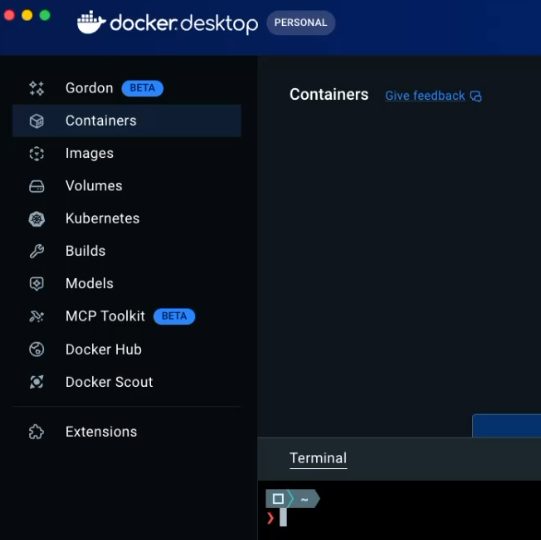
- Open Docker Desktop, then open a Terminal within Docker Desktop (it should be on the bottom right corner of Docker Desktop, click on "Terminal", and grant permissions to open one)
- Open this link in your browser (it's Open WebUI's official GitHub, focused on the section where you can install Open WebUI bundled with Ollama via a single
dockercommand). - Copy the command to run a Docker container with Open WebUI bundled with Ollama. You most likely should use "CPU only" (but feel free to experiment with "GPU support" if you know what you're doing). If using "CPU only", the command is:
docker run -d -p 3000:8080 -v ollama:/root/.ollama -v open-webui:/app/backend/data --name open-webui --restart always ghcr.io/open-webui/open-webui:ollama - Paste that command in the Terminal of your Docker Desktop and hit enter. This will install Ollama and Open WebUI via Docker, which might take a while (several GBs of download).
- Once it's ready, you should see the
open-webuicontainer running in Docker Desktop (a green dot indicates it's running). Notice that you can always stop, restart, or delete this container (which contains your local AI) via Docker Desktop (stop ⏹ and play ⏯ buttons to the right)
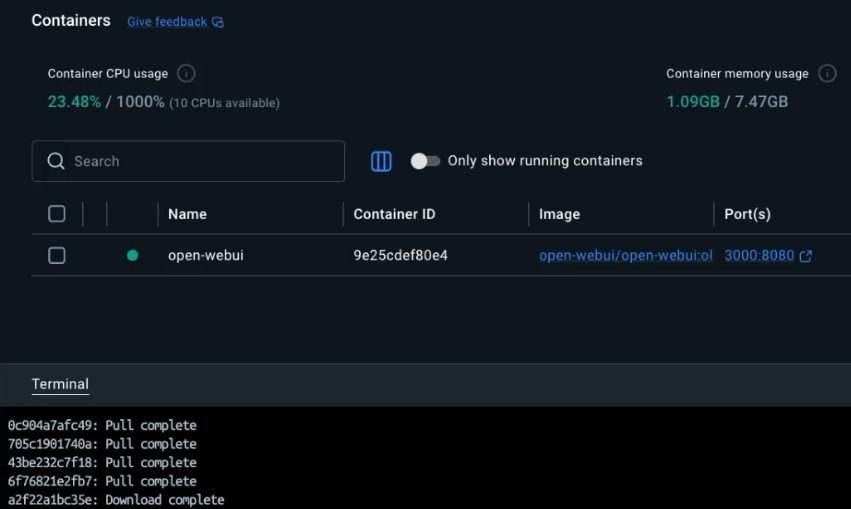
- Open WebUI is ready to be loaded in your browser! Click on the "Port(s)" link in Docker Desktop for the container (should say
3000:8080), or navigate to http://localhost:3000 - Create an admin login for Open WebUI (don't worry, this login is needed only for local use, and it stays local).
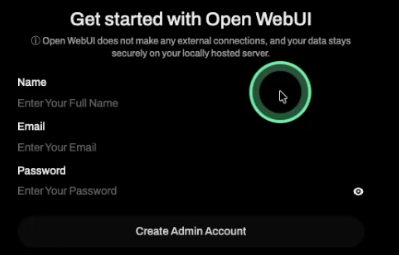
- Once created, login as an admin into your local Open WebUI, you will be greeted with a pop-up, which you can close. You will then see a chat interface similar to ChatGPT and other cloud AIs you might have used.
- Before chatting with an AI model, we must first download it! And now comes the million-dollar question: which model should you download and use locally? Well, even though I will suggest a model in a moment, the annoying answer is "it depends". This is like choosing which T-shirt to buy: often you need to go to the store and try on several different T-shirts before you find the one that fits you, feels comfortable, and you like how it looks. You can explore tons of different open-source models in Ollama's website and see which one best fits within your machine.

Photo by Ashita Mata on Unsplash
- All of that said, I suggest you start with Meta's Llama 3.2. This is a smaller model that does a good enough job at the reasoning tasks that many people use ChatGPT for (summarizing text, drafting emails...), and is likely to run well in most modern laptops. If you have older or less powerful hardware, you might need to look for an even smaller model (you will know this if Llama 3.2 runs sluggishly or not at all). If Llama 3.2 runs super smoothly, you can explore more powerful models (Llama 3.2 is far from cutting-edge at this point, I just wanted to suggest a simple model to start off with)
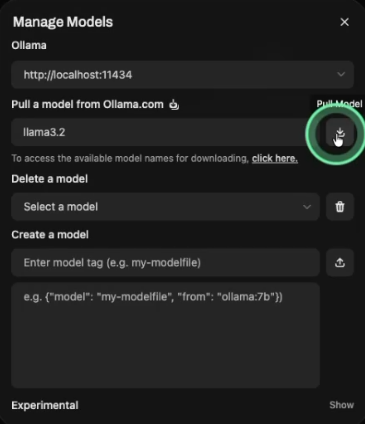
- To install Llama 3.2 in your computer, click on your Admin account name within Open WebUI (bottom-left corner in Open WebUI) > then go to "Admin Panel" > go to "Settings" > go to "Models" > click on "Manage" > enter
llama3.2in the field for pulling models from Ollama > click the "Pull Model" button > wait for the model to download (will take a few minutes)
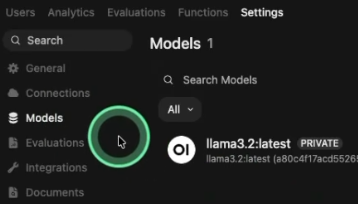
- Once the model is downloaded, you should see it under "Models" (you might not see it immediately, but you can wait, or refresh the page, or leave and come back to "Models")
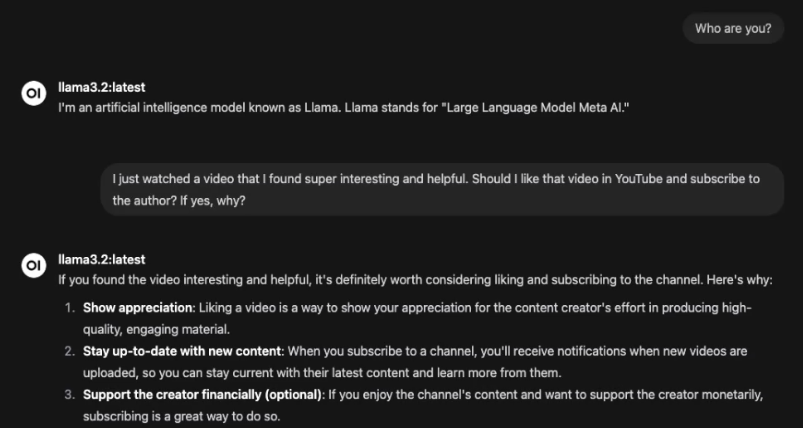
- Now that our model is downloaded, we can chat with it! Go to "New Chat" on the top-left corner, and talk with your local AI!
Alternative stacks/tools for local AI
While the Ollama + Open WebUI stack we have used for Local AI is really straight forward to install and use, there are alternatives out there:
- LM Studio: Best for those who want a visual "App Store" for local AI models. It's a polished app that looks like a professional chat interface.
- Jan: Open-source alternative to LM Studio which focuses on being a 100% offline personal assistant. If you're a privacy-conscious user who wants a clean, simple UI, give it a try.
Wrapping up
I hope I convinced you to give local AI a try. Running local AI is much easier than what most people think it is, and it will definitely be worth it once cloud AI becomes too expensive and annoying. There is no need to vendor-lock yourself to AI tools!
I'd love to hear from you if my blog post inspired you to try out local AI and you liked it! And even if you disliked it, you can still reach out and tell me why! Good luck in your endeavors!